
What I want from Apple's rumoured smart-watch
The internet has been buzzing about a possible smart-watch being developed by Apple. Sure it may have all kinds of cool neat features but there are 2 features I haven’t heard discussed that could make it a must have.
- Since Nike won’t be making a Nike+ Fuelband Android app, could this new watch build self-monitoring functionality (like the fuelband, Shine, Fitbit, etc)? If Apple combines its expertise with that of Nike, I think they can build a truly amazing health monitoring device.
- Biometric authentication. Security breaches have become very common and we have heard that Google is working on a new password replacement device based authentication scheme. Is it possible Apple could use your vitals to build a strong 2-factor authentication token in its smart-watch?
Apple’s IOS was an avant-garde product when it was first released but seems to have stagnated over the last 12-18 months. In many situations, Android devices now have better features at a more competitive price. If Apple wants to maintain its position as the purveyor of premium smartphones, it will have to out innovate Google in its next iteration. This smart-watch may be part of a larger effort to drive new innovation and solidify it as the smart-device leader.
Honest and updated bitcasa review
Related Articles
- The Promise Of Unlimited Cloud Storage - A Review Of Bitcasa
- BitCasa Review Update And New Chrome Plugin
Bitcasa released
There is no shortage of “cloud storage providers”, each trying to outshine the other with a “must have” feature. Bitcasa has now officially jumped into the ring with a novel proposal, unlimited cloud storage for $10 a month (or 10GB for free). As a launch special, you can buy the full annual unlimited storage plan for $69 ($30 launch discount).
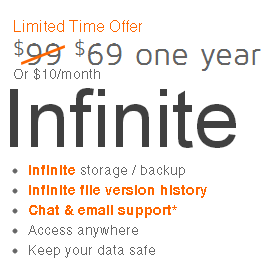
Use promo code "betathanks" (without quotation marks) to get an additional $20 discount. Normally I don't share private discount codes (destined for beta testers only) but this is everywhere on the internet already.
Bitcasa versus dropbox versus skydrive versus Google Drive
In addition to the unlimited storage offering, they also bring another original concept to the tablet called “Infinite drive”. The Bitcasa client maps a new virtual drive on your client OS where you can store files directly on Bitcasa without keeping a copy on your PC. This is a way you can free up lots of space on your primary drive and still keep the files accessible to every app on your PC. The local client has a smart caching algorithm that predicts what files you will need and pre-downloads those so it usually feels pretty fluid (as long as you have a decent internet connection and data cap).
They also support a dropbox-like sync mode called “mirroring” however this mode has a couple of important flaws (which the company says they will eventually address).
Bothersome limitations
#1
You can mirror a folder from anywhere on your PC (which is great – no need to move the folder to a “magic” folder) and make it available on other devices however only changes made on the primary machine are synchronized back and forth. Changes made on other devices do not sync back yet.
#2
The client doesn’t offer selective synchronization which means you can mirror an entire folder (with its sub-folders) but not a subset.
#3
There is a feature that allows you to share large folders or files using a special share function. Unfortunately there is no way to see everything you have shared so you can easily un-share.
#4
You can sync your photo folders and then share them with family and friends easily. The issue is that the sharing interface for pictures isn’t optimized as a real photo sharing service yet. Additionally they should improve the photo download options for the people receiving the share links (selective or entire album).
#5
Bitcasa is a new startup and I am worried about their viability. Overall I love the concept of Bitcasa and hope they thrive and grow but what happens if they ever close up shop? What happens to my data? I want them to release a bill of customer rights committing via contract to allow customers adequate time to retrieve their stored info in the event of a sale or shutdown.
#6
Although the founders have a strong background in technology, online storage and fraud detection, I haven't received the details of how they protect my files (the real technical details). I have asked their support but haven't received an answer yet.
Verdict
I have hundreds of gigs of pictures and videos that I want to store online (for safety and ease of sharing). I love their concept and really want them to success and drive the market to unlimited affordable storage.
I want their security features reviewed by independent analysts ASAP. I will continue using them for now but will be wary until the service improves (new features) and I get a more comfortable about their long term viability.
Office 2013 can only be installed on one machine
One of the major questions tech pundits were asking themselves when Office 2013 came out is “can the license be transferred to another PC?” Why would you want to transfer the license of a $150 software suite? A PC dies, you upgrade, it get’s stolen, etc.
Microsoft has now confirmed to Computerworld that Office 2013 software licenses will not be transferable and that it is only licensed to work on the first PC it is installed on. This is a bad policy for consumers buying the licensed legal copy and Microsoft hopes to entice you to move to their subscription based Office 365 offering instead of the traditional buy-once-use-for-3-year-software package.
Some people will pirate software even if it is cheap and affordable but many consumers do the right thing and buy legal licensed copies of their software. Unfortunately anti-consumer policies like this may encourage good law abiding software users to seek alternatives and move to pirated versions.
October 2012 iMacs now in Apple's refurb store
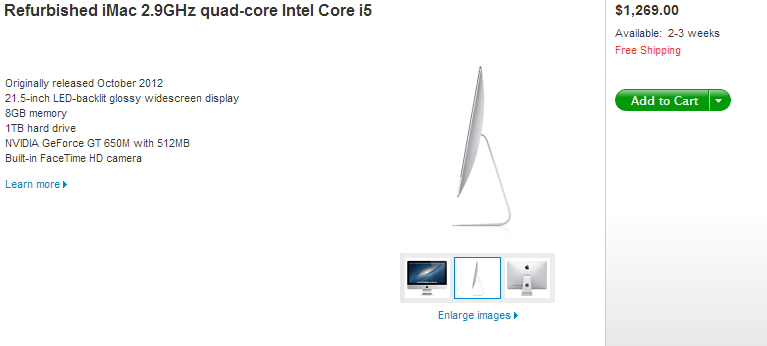
Many were relieved when Apple finally released the October 2012 iteration of the iMac line. It was powerful and incredibly sexy. Like all Apple products though, you can to pay a premium for it. Well now you can get one of those shiny updated wonder-machines in the Apple refurbished online store with a nice discount.
These are Apple refurbished so you know they’ll look great and come with the standard 1 year warranty, so no worries about getting a lemon. Apple usually has limited supplies of refurb items so if you want one, get it while its available or check back often.
Automatically silence your Android phone / tablet at night
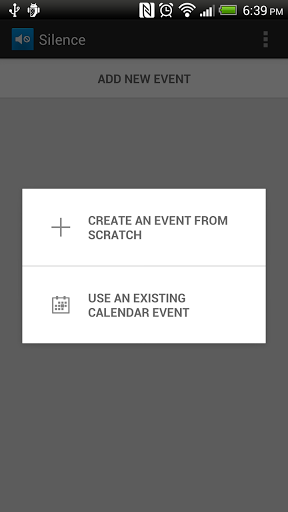
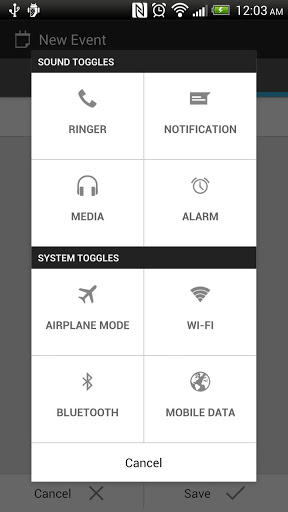
One of the questions I get asked most often is how to silence an android device at night or during busy times. Unlike IOS, Android doesn’t include this functionality in the base OS but fear not, a free app called Silence is the answer.
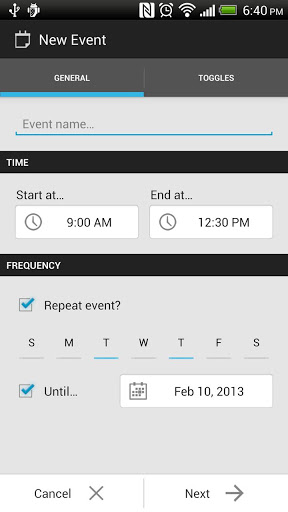
It is a well designed app with a clean and simple user interface that can toggle settings (sound, wireless, mobile data, etc) automatically based on your calendar. Unlike other similar apps (aka Tasker or locale) this one is incredibly easy to use and even a newbie can configure it in minutes.
You can configure Silence to use your calendar entries and make device changes accordingly. As an example, you can configure it to automatically switch your device into vibrate mode during meetings. You can also configure (non calendar) settings like switching your phone to quiet mode every evening from 1000pm until 0800am.
The most recent version also adds the ability to change data and airplane mode settings for most devices (depends if the device supports third party apps changing these).
The app is free (ad-supported) or you can spend $2 to get the ad free version and support the continued development of the app. The developer seems responsive when emailed and the app get’s periodic updates (which is a good thing).
A more technical person can definitely accomplish the same results by using Tasker or Locale but these are not free and much more complicated to use. Silence is simple enough for your mom to use and free so give it a try. And if you like it, why not support the developer by purchasing the $2 ad-free version?
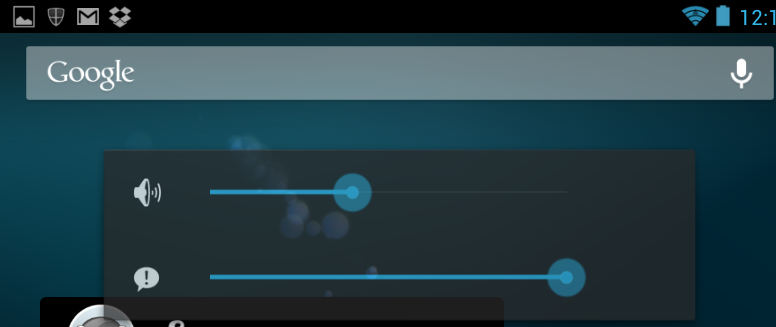
App and notification volume control on Android

Built in Equalizer in Android
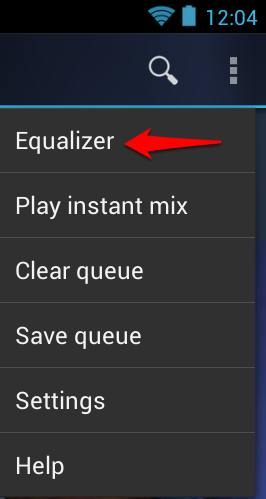
Many users believe they need a custom ROM or special app to get EQ goodness in Android. Google has baked in this EQ goodness in Android and using it is very easy. Open the default Google Music app, then load and play any song.
Click the Menu button (three little dots) and chose Equalizer
Once here, make sure you toggle the switch to on.
Choose the style of equalization.
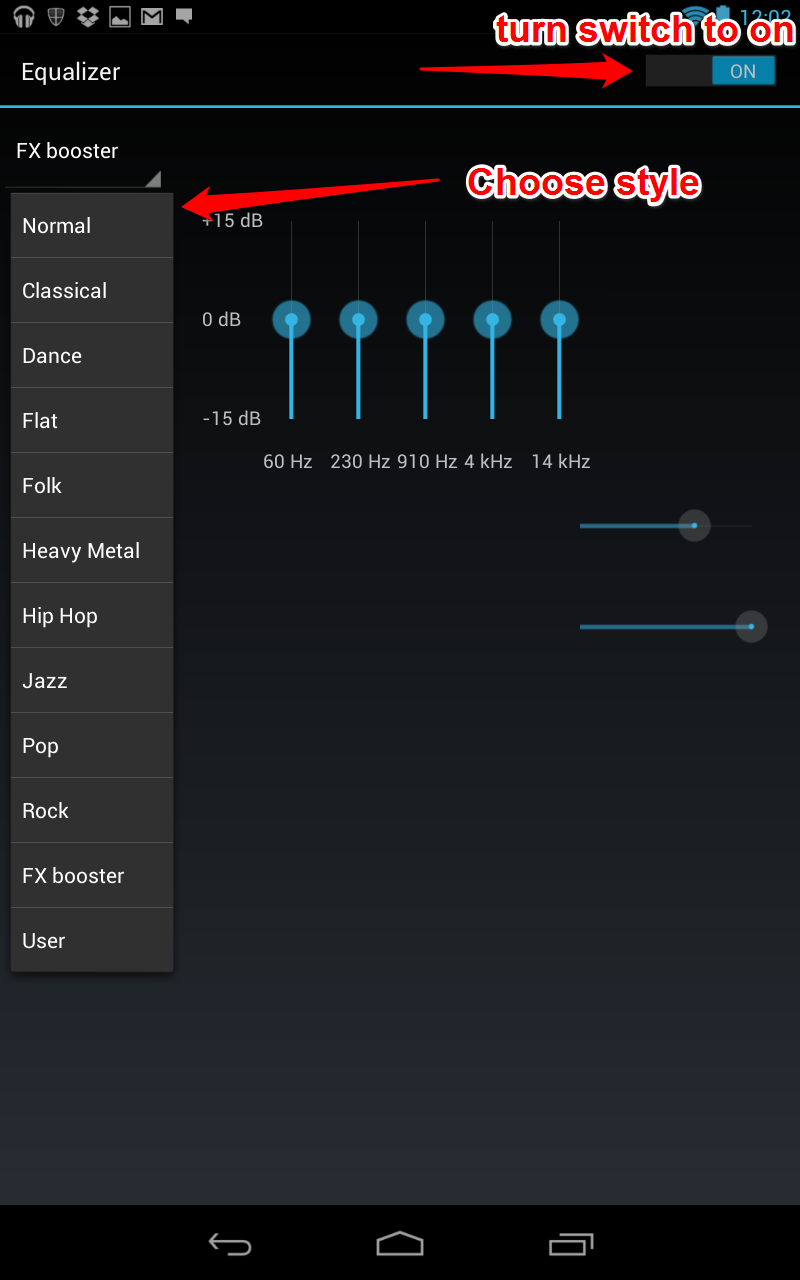
These settings aren't device wide (aka they are only for the music app) but they can provide a nice punch when needed.
Android 4.2.2 prevents Nexus 4 from using LTE
Reviewers were shocked when Google's flagship Nexus 4 was released without LTE support. How could a flagship phone come without LTE? Creative users figured out a way to "trick" the phone into switching on its unsupported but built in LTE chipset (worked only on AWS band 4 LTE).
Well now we learn that Google's latest Android update (4.2.2) kills the workaround that thousands have been exploiting to enjoy faster LTE speeds. With the update installed, any attempts to choose LTE as the network tech is met with an automatic switchback to WCDMA preferred.
If you want LTE on your Nexus 4, don't upgrade it to 4.2.2. and hope someone releases a custom ROM with the bug fixes and improvements (without the new radio blocking patch).
Original article by AnandTech here.
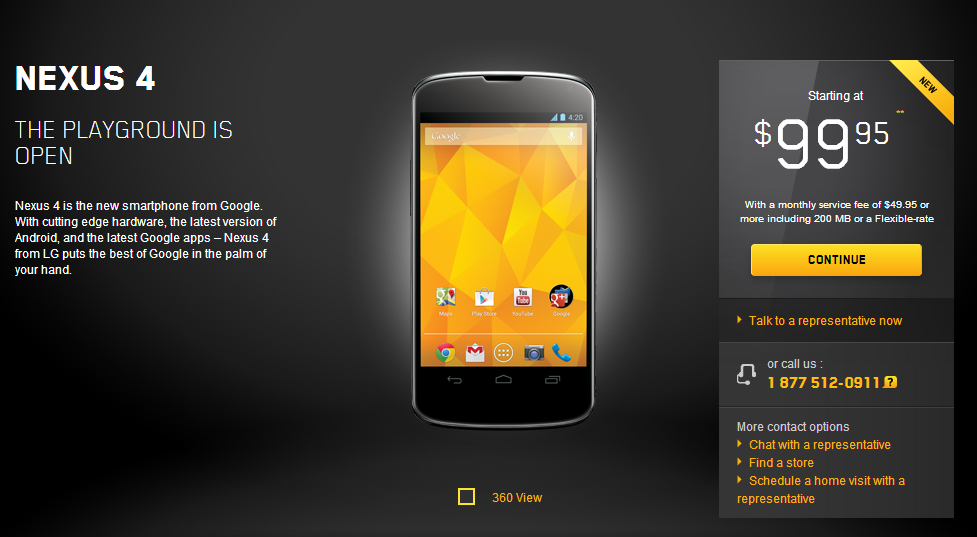
Videotron drops Google Nexus 4 price to $99 on contract
Nexus 4 Wireless Charger available
Now that the Google Nexus 4 is finally available in decent quantities we are seeing a slow (excruciatingly slow) trickle of accessories. I am happy to report that the Nexus 4 wireless charger is finally available in the Google Play store (if you live in the US). It seems Canadians and Brits just have to wait and wait and wait.
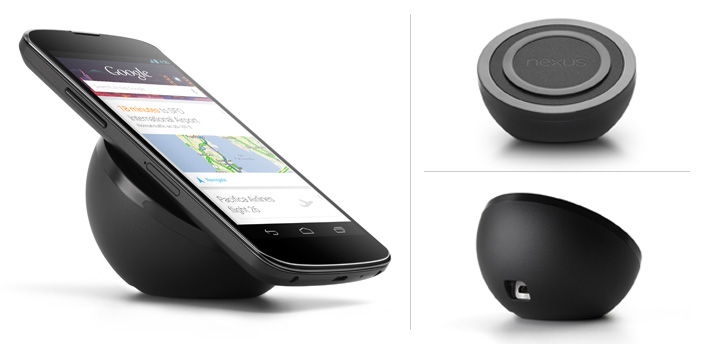
It is being sold for $59.99 and there is a 5 device max per person limit. The charger uses Qi technology and plugs into the wall. When you want to charge your device, you simply slide it on the charger and start juicing up. When you need your device, just pick it up and you’re done. No cables to fumble with.
The port seems to be a microUSB one and this wall plug seems to be a North America only option (for now at least). It will take 4 hours to charge up your device which isn’t too shabby.
Nike Fuelband app not coming to Android
We are seeing an explosion of "self monitoring and measurement" gizmos. The Nike Fuelband was one such product that won the hearts and minds of many. Those on IOS have been enjoying the Fuelband IOS app for some time. It allows Nike Fuelband users to monitor progress, see achievements and share their performance with others.
Nike has now confirmed that it will NOT be releasing an Android app anytime soon:
@mkoyerp Right now, we're focused on iOS and web. We're not working on an Android App.
— Nike Support (@NikeSupport) February 10, 2013
My primary everyday smartphone is still an iPhone so this doesn't directly inconvenience me but it is interesting when a company decides to cut off the most popular smartphone OS. Why would a company like Nike, with deep pockets, not support a platform used by thousands of its customers? We may never know the reasoning behind it but I have already head some customers are switching to competing devices in protest.
You can get the Fitbit Android app here.
How to get the Android 4.2.2 on your Nexus device now
Update 4.2.2 has been slowly rolling out Over The Air to devices but many people haven't received it yet. IF you want to force your device to download it, do the following:
- Go to Settings -> Apps -> All
- Find Google Services Framework App
- Tap on Force Stop
- Select Clear Data.
- Go to Settings -> About Tablet -> System Update
My device wasn't receiving the update until I performed this little work around.
Turn off app notifications in Android
After a while, there will certainly be app notifications you never want to see again. Google has made this change very easy. Open Settings, then find Apps. Here you will see a list of all of the apps that are installed. Click on the app you want to make the change to and uncheck the Show Notifications checkbox.
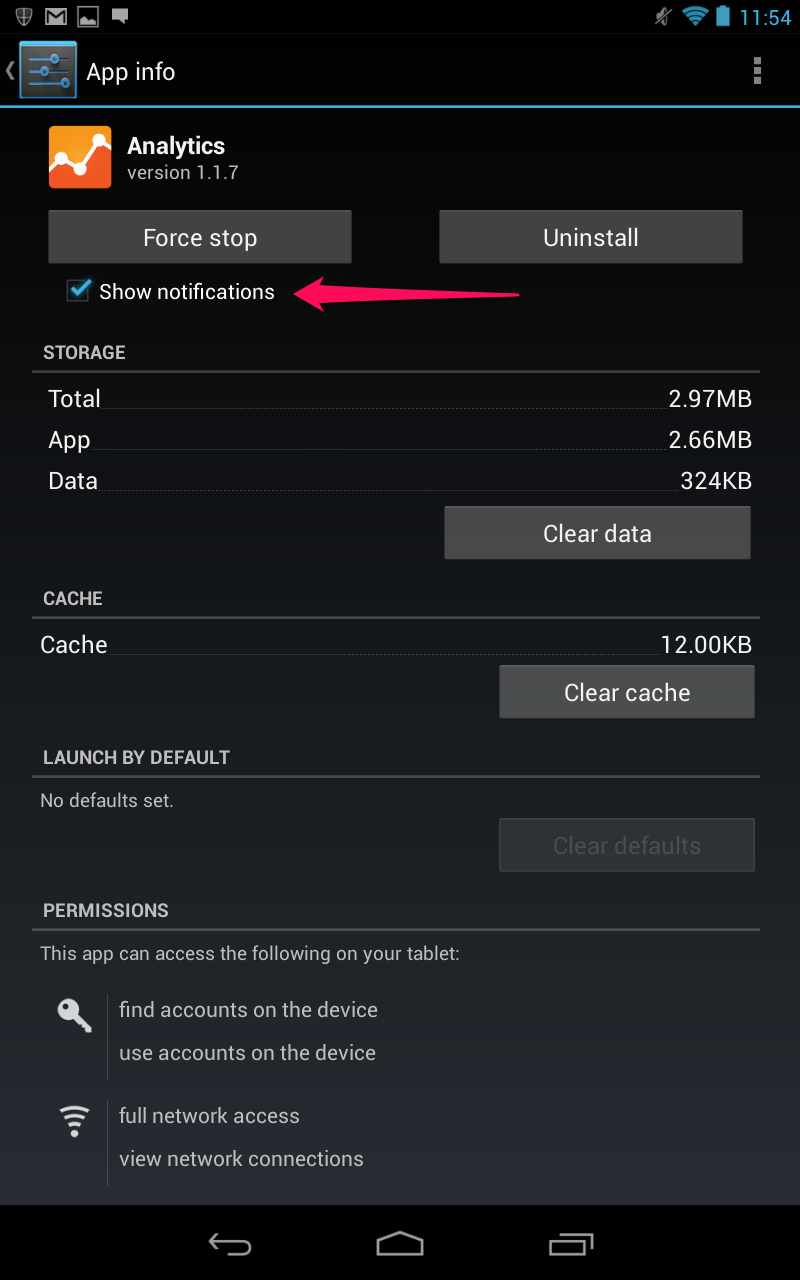
The app will no longer bother you.
Use voice search on your Android
IF you own an Android with Google Now enabled then this is a neat trick for you.
Start Google Now (swipe from the bottom bezel to the middle of the screen on most devices).
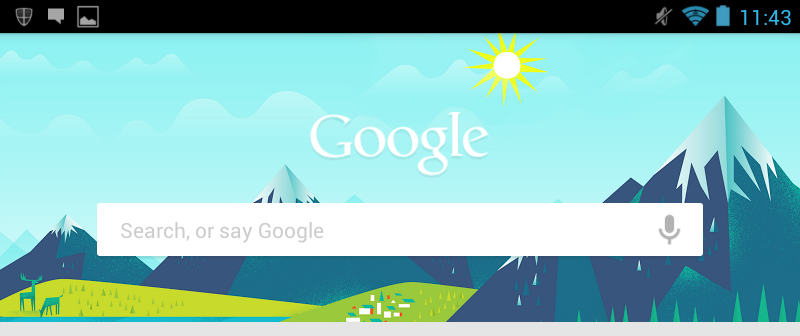
When the Google Now screen appears say "Google" followed by your query.
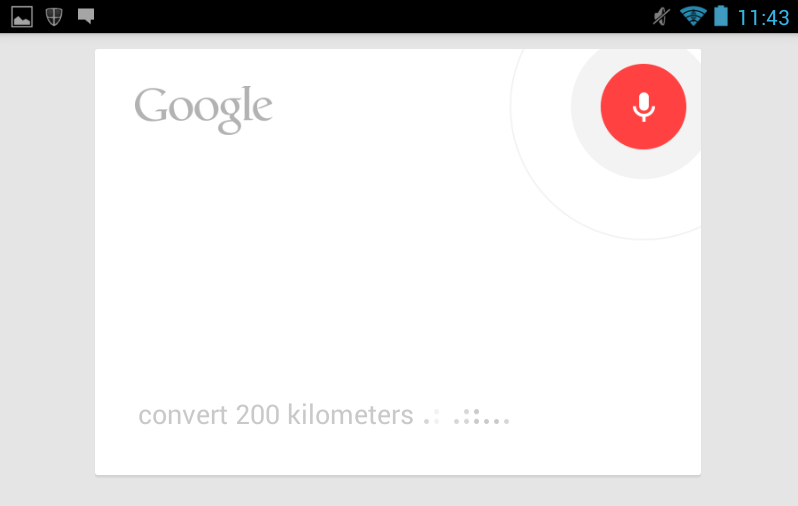
Google Now will give you your answer.
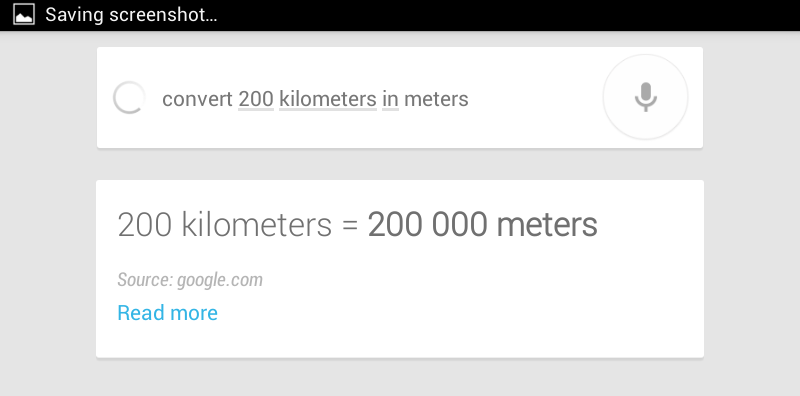
To use a second time in a row, you will have to click on the little microphone next to the search box.
Fido to offer US roaming package for $7.99
Sometime this spring, Fido will launch a new US roaming add-on for its Canadian customers. For $7.99, you will get 50MB of US data roaming for a 24 hour window. Activation of the pack will be automatic as soon as you use data in the US. If you pass the 50MB limit, they will charge another $7.99 for each 50MB used (rounded up).
@ekiledjian Coming this spring, Fido will offer customers a $7.99 pay-per-use roaming rate that gives customers access to 50MB of... 1/2 ^nk
— Fido Solutions (@FidoSolutions) February 13, 2013
@ekiledjian ...data over a 24h period while travelling in the U.S. 2/2 ^nk
— Fido Solutions (@FidoSolutions) February 13, 2013
Fido changing their smartphone unlocking policy
I am happy to hear that Fido is following in its parents footsteps (Rogers) and will be allowing customers to unlock their Fido devices for $50 after 90 days of use (as long as the account is in good standing).
@ekiledjian As of March 2013, customers with a minimum account tenure of 90 days will now be eligible to unlock their wireless devices. ^nk
— Fido Solutions (@FidoSolutions) February 13, 2013
Related article:
Make Google Maps data available offline on Android
Unfortunately the Make Offline option isn't yet implemented in the iPhone version so this tip currently applies to Android phones. and tablets.
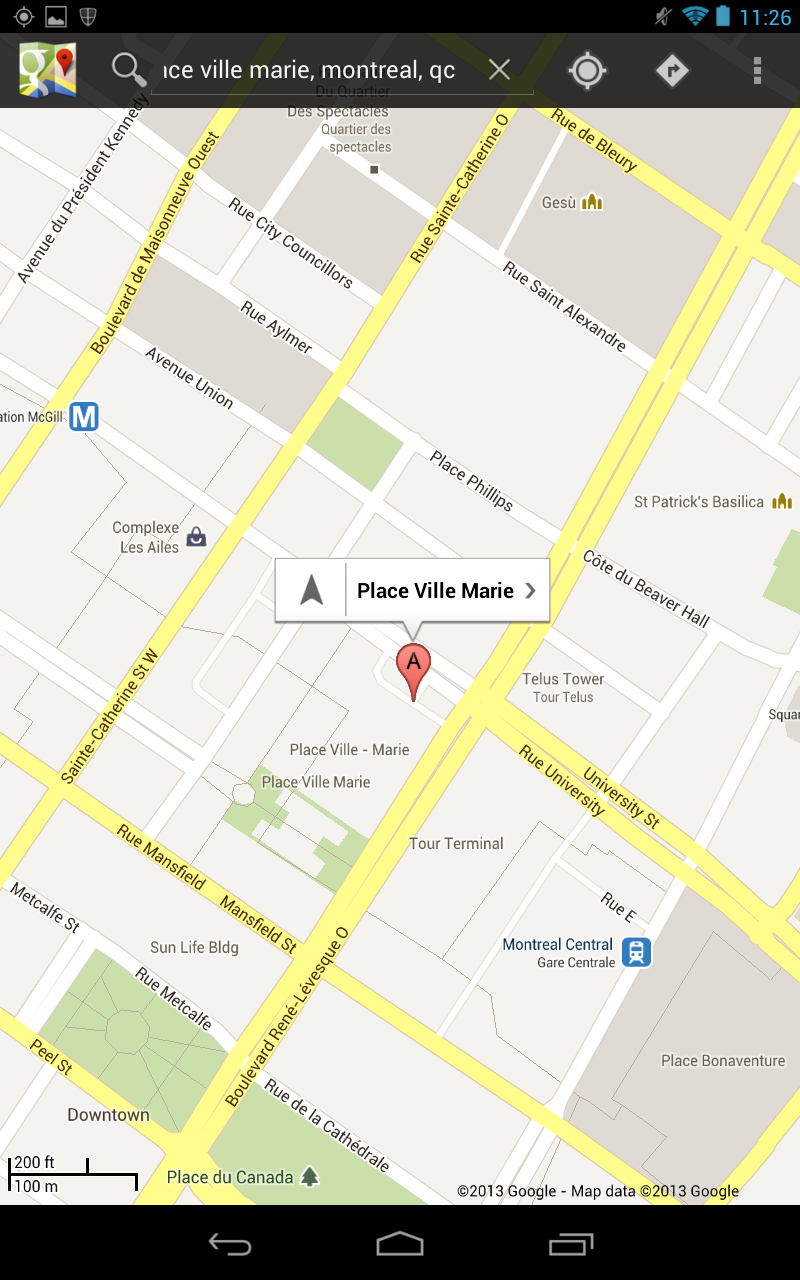
Go to Google Maps and browse the area you would like to make available offline.
1 - Navigate to the area you would like available offline
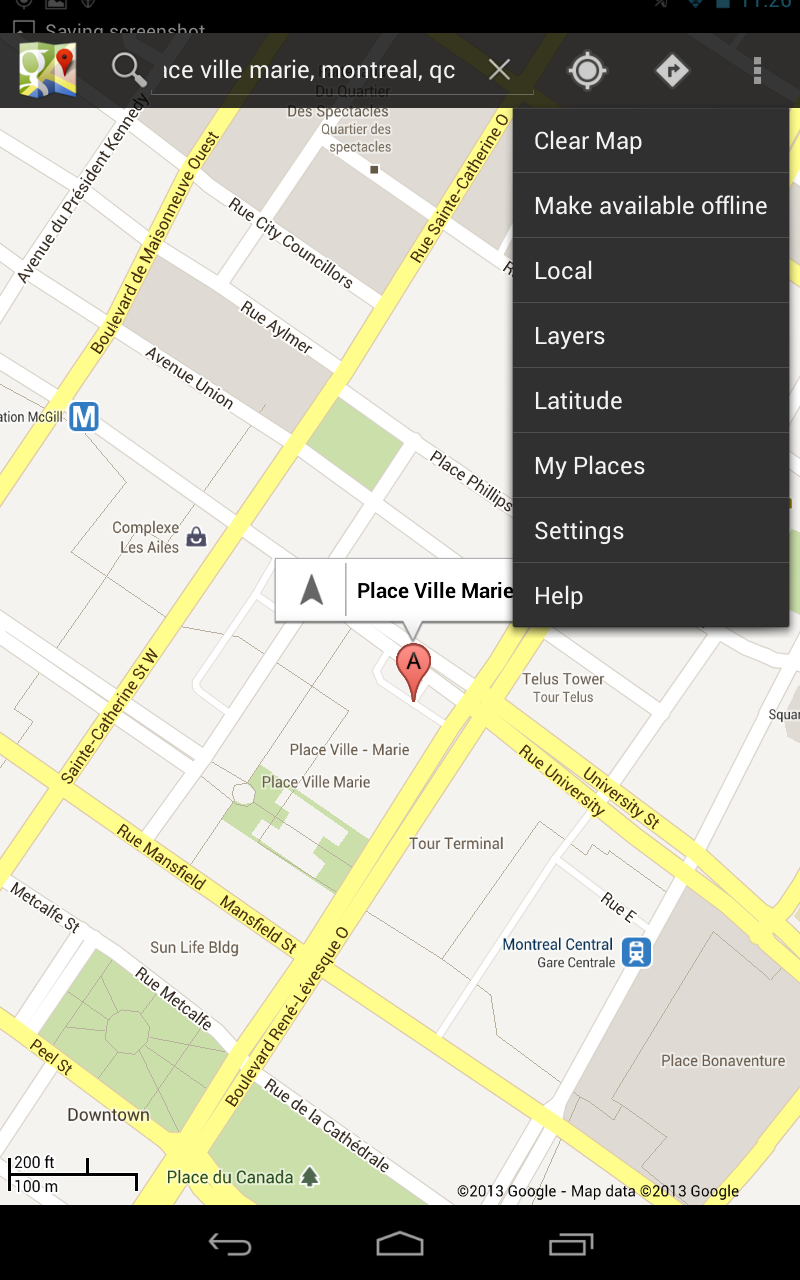
2 - Click on the menu button (three little dots) and choose Make available offline
3 - If you choose an are that is too small or too big, you might get an error message. Either zoom in or out and eventually the error message will go away and the box will be black (instead of red).

4 - Click Done and wait for the map to download.
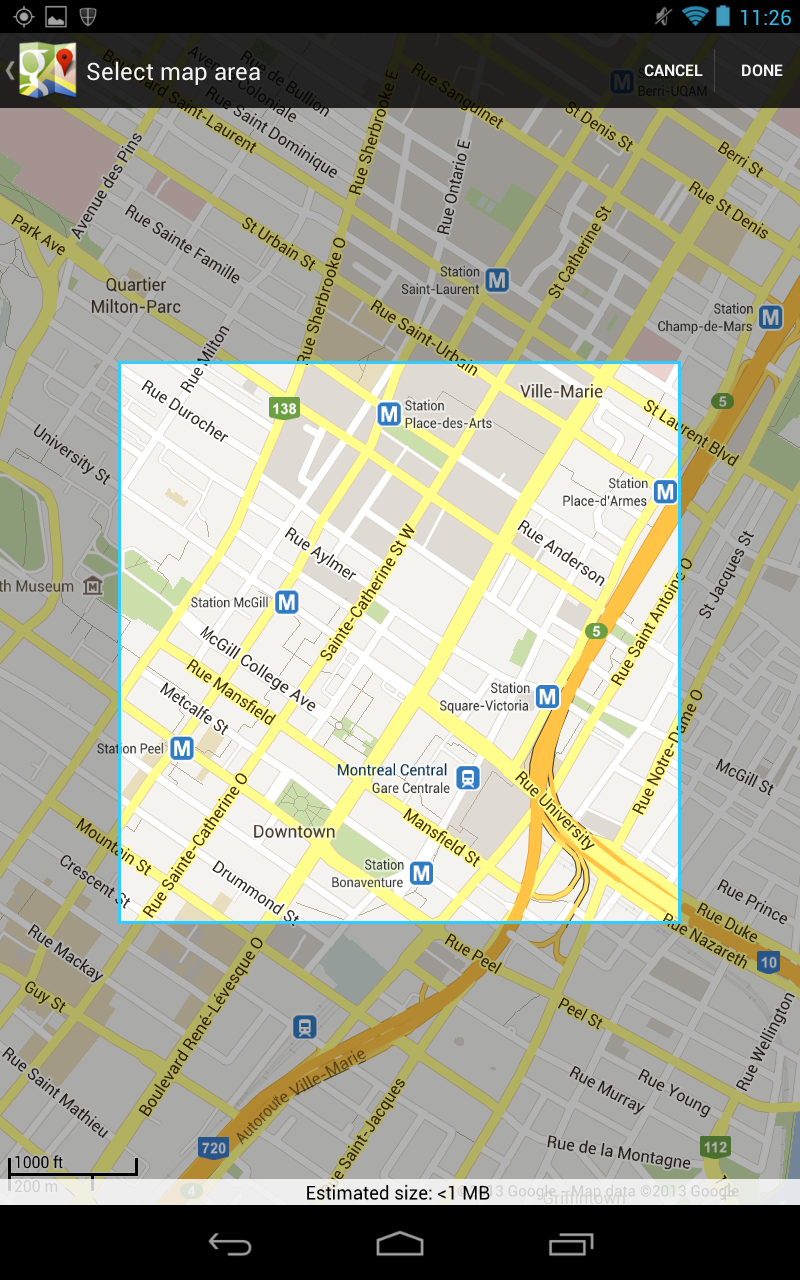
Now even if you are not connected (3G/4G/WIFI) you will still be able to navigate. For longer trips, you may need to download multiple tiles to cache your entire route. On my Nexus 7 with Android 4.2.1, there is a 6 offline tile maximum (even though I have enough space).
This is a fun little trick that should be very useful
Is this the HTC One (formerly M7)?
@evleaks twitted a picture it claims is the upcoming HTC (formerly called M7)
HTC One, 2013 twitter.com/evleaks/status…
— @evleaks (@evleaks) February 11, 2013
The HTC One will be the outfit's flagship phone ushering in a new era of properity for the once mighty manufacturer (or so the sotry goes). This image seems to merge the various rumors we have heard over the last couple fo weeks and with the Feb 19 launch, we won't have to wait long for confirmation.
As with all rumors, take this with a pinch of salt. With Sony and HTC coming to the table with interesting devices, 2013 is shaping up to be an interesting year for Android.
How To Take A Screenshot On iPhone
In my previous article, I explained why and how to take screenshots on an android device. Now we look at how to do this on an IOS device (iphone, iPad or iPad mini).
- Go to the app to screen you want to save
- Press the Home button and power button at the same time
- The screen will go completely white for a fraction of a second and you'll screen a camera snapshot sound
Since the iphone does not expose its file system, you simply go to your Photos app and it will be listed as the last image there.
How to take a screenshot on Android
This is a feature I use once in a while to grab screenshots for my blog or to share with friends. On any Android device, hold down the volume down and Power buttons at the same time (for about half a second) and you will see a little graphic showing you a screenshot has been taken.
At first you may have some difficulty finding the right wait time but eventually this will become second nature.
Screenshots [on any Nexus device] are saved in:
/storage/sdcard0/Pictures/Screenshots