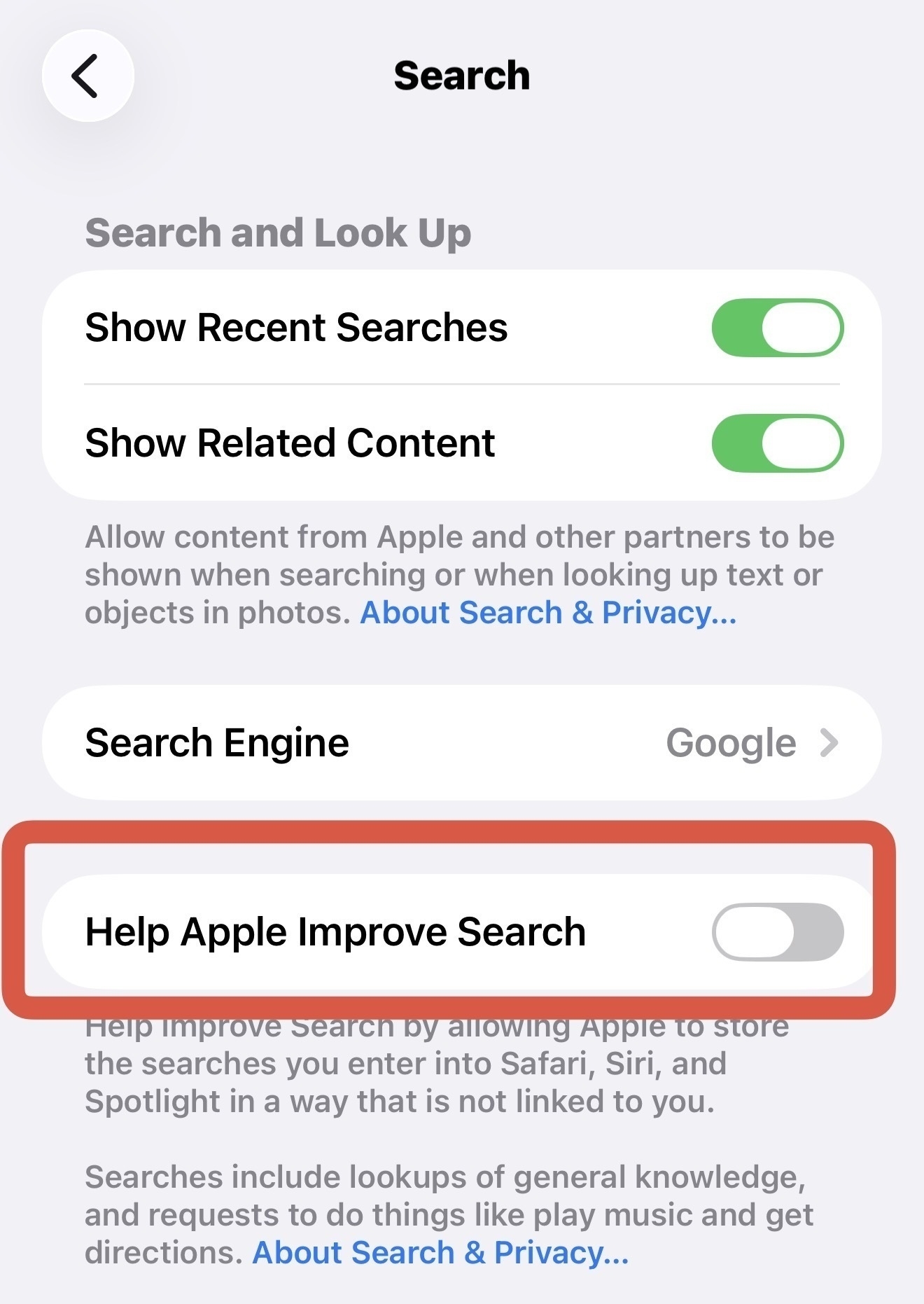
iPhone's "Help Apple Improve Search": what it is, where it lives, and how Apple says it treats your data
Apple includes a setting called Help Apple Improve Search that uses activity from Spotlight, Siri and Safari to refine search quality. Apple says this data is de-identified and not linked to your Apple ID.
What it does
- Uses your search queries (including visual look-ups) and related context to improve relevance.
- Associates signals with a random, rotating, device-generated identifier, not your Apple ID or email.
- May use aggregated information to evaluate search quality and guide product improvements.
What signals can be involved
- Text and visual queries you enter.
- The suggestions you tap, related app usage and device context.
- Location signals if you’ve allowed Location Services for related features.
- Apple describes these as processed in a way intended to prevent direct linking to you.
Where to find it
Settings → Search → Help Apple Improve Search.
Default state
After updating to iOS 26, some devices show this control enabled. Check your device to confirm the current status.
Impact when turned off
- Search, Siri and Safari continue to work.
- Your search activity is not used for Apple’s improvement programmes described by this control.
How to change the setting
Go to Settings → Search → Help Apple Improve Search and toggle off if you do not want your search activity used for improvement.
Why the setting exists
- To allow Apple to collect de-identified signals that help rank results, reduce errors and improve features across Spotlight, Siri and Safari.
How Apple says it de-identifies data
- Uses a device-generated identifier that rotates periodically.
- Keeps improvement data separate from account identifiers such as your Apple ID or email.
- Relies on aggregation and sampling to evaluate search quality.
Quick audit checklist (2 minutes)
- Settings → Search: review the Help Apple Improve Search toggle.
- Review Show Recent Searches and Show Related Content.
- Privacy & Security → Location Services → System Services: check Suggestions & Search.
- Spotlight tests: swipe down on the Home Screen, run a few queries and confirm expected behaviour.
For privacy-first configurations
- Keep Help Apple Improve Search off.
- Minimise optional signals (Recent Searches, Related Content).
- Limit Suggestions & Search under System Services if you do not want location signals used.
Notes for families and shared devices
- Each device maintains its own setting.
- If multiple people use one iPhone, review this control after major updates.
Summary
“Help Apple Improve Search” governs whether Apple can use your search activity to enhance its search features under a de-identification model. The control is available at Settings → Search; turn it off if you prefer not to share improvement data.