
Splashtop IOS App Review update - Don't buy it!
During my original review, I was using Windows 7 and Splashtop worked like a champ. I loved it and recommended it. Then I upgraded to Windows 8 and started to experience strange issues. After I made sure the issue wasn’t from a misconfiguration, I opened a support ticket with Splashtop (which cost $9.99 when I acquired it mid this year).
Here is the response I received from Splashtop:
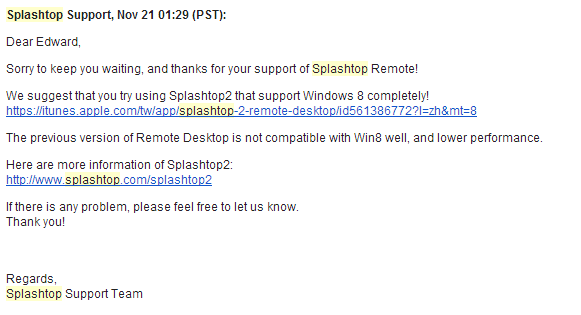
Basically to solve my issues, they want me to "upgrade" to Splashtop 2 which has a monthly service fee. No other suggestion was made to fix my issues and they were unwilling to provide an upgrade promo price considering I had paid for their previous product less than 5 months ago.
I have a real issue with a company selling a product known to be inferior. The original Splashtop is still being sold on itunes (albeit now $2.99). They should be honest and clearly warn consumers not to purchase this product if the intended use is with Windows 8. I also hate companies trying to do a "hard sell" as the only solution to my problems. It's really too bad because it worked very well with Windows 7.
I have gone back to my LogMeIn Ignition solution for remote access (which doesn't stream video but has always been rock solid).
My verdict is don't buy Splashtop 1 for use with Windows 8. Splashtop 2 works well on your LAN but if you want to remote access your device via the internet (which is likely why you wanted a remote access solution in the first place) then you have to pay their monthly or annual fee.
Gangdam Style Christmas Light show
With the popularity of Gangdam style, this was bound to happen. Someone has created a Christmas light show to the popular song.
It sure is entertaining. I wonder how long this setup took to design and build.
Windows8 TIP - Remove ads from built in apps

Other Windows 8 Tips and Tricks you may enjoy:
- Windows8 TIP - Take a screenshot
- Windows8 TIP - Quick Access Menu
- Windows8 TIP - Log in automatically
- Windows8 TIP - Keyboard shortcuts
- Windows8 TIP – Bringing the start menu back to the Windows 8 desktop
- Memonica - Learn windows 8 tips and tricks easily
- Windows8 TIP - How to shutdown or reboot your PC
- Windows8 TIP - List all of your applications
- Windows8 TIP - Get Windows Media Center upgrade for Free
Canada's great north get's added to Google Street View
To get a sense of what it’s like to live up in the north, you can walk down Omingmak Street, make your way to the bridge (where locals fish for Arctic Char) and head out to the Old Stone Church. Check out some Arctic souvenirs in the Arctic Closet, or visit the Ice Hockey and Curling Arena—it’s uninsulated and freezes over once they flood it in the winter! You can also learn more about Inuit history and culture at theKitikmeot Heritage Society and the Arctic Coast Visitors Centre.
Is the D-Link SharePort Mobile Companion a travelers best friend?
Anytime I travel, the one thing I absolutely want is wireless in-room internet. Most hotels offer some kind of wireless service but often it is slow, overloaded or isn’t accessible everywhere in the room. The best solution to this problem is to bring along your own router and convert the in-room wired connection into your own personal wireless network.
Being a one bag (carry-on only) traveler, everything I bring has to be useful and small. The D-Link SharePort Mobile Companion is the right answer (DIR-505).
What it does
The 2 ways you may use the DIR-505 on the road is:
- As a router, it takes your wired connection and shares it with all your wireless devices
- As a repeaster, it can amplify a weak WIFI signal and actually make it usable
- WIFI Hostpot mode to share files from a USB key (not something I think is useful for a business traveller)
If the hotel room has a wired internet connection, then I will always use it in the first mode. If the hotel only provides weak WIFI then I'll try to set up my wireless router as a repeater and may move it around the room to see where it provides the best peformance.
You use a simple mode rocker switch to change the device’s function. For the first option, you choose the Router mode, plug it into the wall, plug in the wired Ethernet cable. You then use the provided network information (provided on a business card size card) and voila. 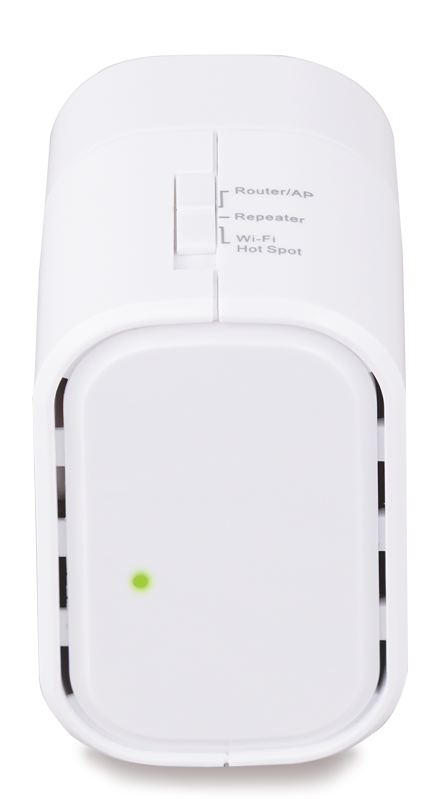
Here is a view of the bottom.
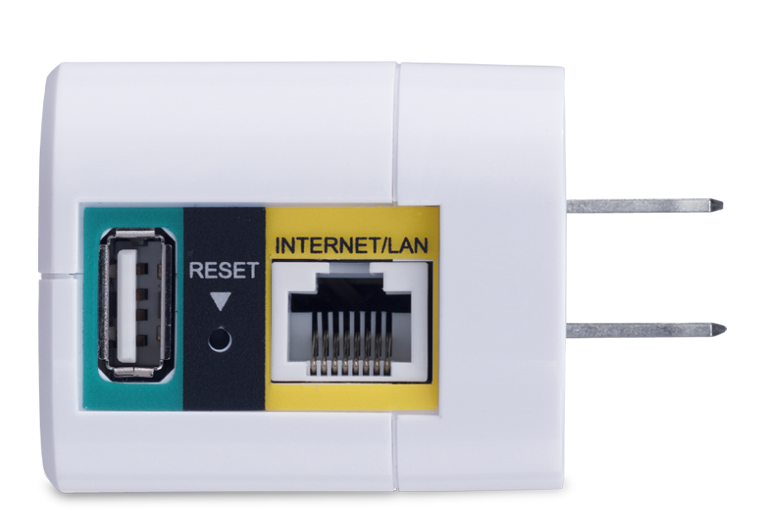
You can load the D-Link IOS or Android companion app to unlock additional functionality. You can plug a USB memory key in the USB port and use it to stream pictures/movies to your device (via their app) or to backup your device onto the USB key. The port doesn't provide enough power to use a traditional USB powered mechanical hard drive (but I didn't expect it to either).
The USB port can also be used to charge your iPhone or Android phone. Which is a nice touch. It doesn't seem to charge well with the iPad but I'll have to do some additional testing.
Since hotel rooms, aren't extremely big, you shouldn't have any issues with the power of the WIFI router. In tests I was able to go to connecting rooms and still keep a solid connection. Nothing to complain about here.
I connected to the test device using everything from a Winwows Surface RT tablet, an iphone 4s, an iPad 2/3, a couple Android phones and 2 Dell laptops (one ruinning Windows 8 the other Windows 7). It worked great with all the devices.
Get the updates
I read some complaints related to configuration or performance but didn't experience any of it. Make sure you update to the latest firmware as this liekly fixes many of the issues users have been complaining about (drops, ability to upload photos from an ipad, etc).
I found that performing a factory reset after installing an upgrade helps get the kinks out.
Comparing it
This isn't an ultra powerful device but is small, easy to use and fairly affordable. For the occasional traveller, this is a fantastic option to ensure you stay connected while on the road. Many European hotels include wired internet but charge extra for WIFI and the device pays for itself in 2 or 3 days.
Overall I like it and would give it a 3.5 out of 5 star rating.
I tried the Belkin wireless travel router (F9K1107) and found the D-Link easier to use and more reliable. The Belkin seemed to intermittently drop my connection. I would give it a 2.5 out of 5 star rating.
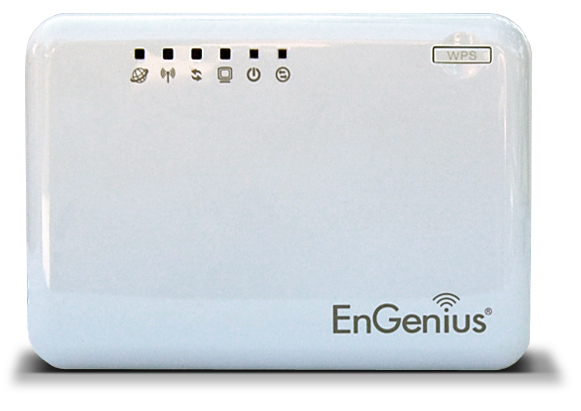
For now, I will stick with my Engenius ETR9330 wireless travel router. I like the Engenius because of all travel routers I have used, this one seems to provide the strongest most reliable WIFI signal. It is as small as a pack of cigarettes. Setup is extremely easy using a web browser. I have never found a device that didn't work with it. It has a built in Stateful Packet Insepection firewall which is a very nice feature for hostile hotel networks. I would give it a 4.5 out of 5 star rating.
RetroUI - Bring back the Start Menu in Windows 8
I wrote an update to my article entitled : "Windows8 TIP - Bringing The Start Menu Back to Windows 8."
I talk about RetroUI and why it may be the best Windows 8 app to bring back the start menu.
I recommend you take a quick look at the update section of that article (at the bottom).
The Bing Top Searches of 2012 Report
- iPhone 5
- iPad
- Samsung Galaxy S III
- Kindle
- iPad 3
- iPod Touch
- Xbox
- PlayStation 3
- iPhone 4S
- Windows 8
- iPhone 5
- 2012 Elections
- 2012 Olympics
- Hurricane Sandy
- Honey Boo Boo Reality Show
Nexus 4 available but not for Canadians
WineSkin is the ideal way to bring back Wine from your trip
One of the joys of travelling is discovering new tastes and bringing some of it back with you. Bringing back some souvenir alcohol is a great but most travelers worry about the bottle breaking in transit and leaving an indelible mark on your valuables.
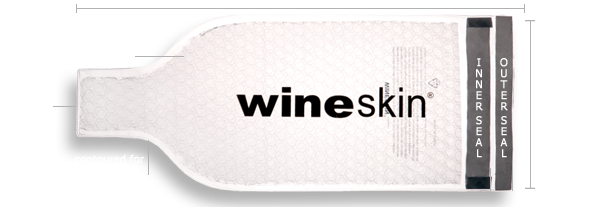
The WineSkin may just be able to solve your problem. The WineSkin is a thick peal-and-seal bubble protection system for your alcohol. Using it is very simple.
- Insert your favorite 750ml (or smaller) bottle into the WineSkin
- Peel and press the seal (the inner seal) against the vinyl covering
- Form fit the rest of the WineSeal around your bottle
- Peel and press the seal (the outer seal) against the vinyl covering
The WineSkin is a single use item but you can find a 3 pack for $9.99 or less.
Alternatives
There are some reusable alternatives but they are usually much bulkier and don't seem to offer the same level of spill protection. Having looked at about a dozen different models, I am confident that this is the one you will want in your luggage.
Where to find it
This is my personal blog and I don't use any kind of affiliate marketing. Any links I provide here are done for your convenience (I don't get anything from the retailers).
Take a quick look around the web and you'll find these everywhere.
- IWA has a 6 pack for $18
- The Container Store has then for $2.99 each
- Amazon has a 2 pack for $7.98
- Sears has a 2 pack for $19.40
Obviously shop around but it is easy to find and very affordable. Your local travel store may even have some in stock.
Steripen review - Guaranteed clean water for the business traveller
As a business travel, I have visited some exotic cities and learned how important clean drinking water is. Water purification is done differently in each country and not all systems match the cleanliness we have come to expect. Other times countries have old or ill-maintained water distribution systems which infect the entire water network. Regardless of the reason, I have come to distrust tap water is most non-western countries.
Even bottled water may not be safe. I once caught a vendor in Thailand who was extracting the clean water from the bottles [by making a small incision in the bottom of the plastic bottles], replacing it with local tap water and then resealing the bottom with a dab of crazy glue. Bottled water can be bad because of foul play or simply because the contents weren’t treated as thoroughly as you would like.
“An estimated 10 million people develop Traveler’s Diarrhea each year. High-risk destinations include developing countries of Latin America, Asia, Africa and the Middle East.” - U.S. Center for Disease Control
WHAT IS IT?
The Steripen is a little device that is now part of my critical travel gear. Using hospital grade UV light, it kills 99.9% of bacteria, viruses and protozoa that cause water-borne illness. You simply fill a glass or plastic container, insert the Steripen tip into the water, press the start button, mix or shake the water during the purification process and when the light turns off, the water is safe to drink.
WHICH MODEL?
I have the original classic and it still works perfectly. All models have the same UV technology but they come in different sizes and shapes. Regardless of which one you choose, you will be well served.
ALTERNATIVES
There are some alternatives but none are as good as a Steripen. You can use water purification tablets but most require an extensive soaking period and change the waters taste.
You can always boil the water for 10-15 minutes but most business travellers simply don't have the facilities to boil water (A coffee machine does not boil the water).
PICTURES
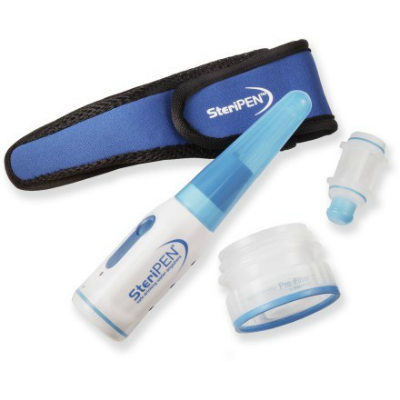
This is the one I have. IT includes the Steripen, a large mouth water bottle adapter and the adapter tip that can be used for drinking.
Double your monthly 3G or LTE allowance for free
Would you like to double your monthly data plan for free? Then go ahead an immediately download the FREE Onavo Extend for iPhone, iPad or Android.
WHAT IS ONAVO EXTEND?
Onavo Extend is a data compression service that works quietly in the background [anytime you are on 3G or LTE] to minimize the amount of data your smartphone consumes. It is completely transparent and magically works to reduce your overall usage.
WHY DO YOU NEED ONAVO EXTEND?
There are 3 scenarios where Onavo Extend really shines:
- Most carriers are now getting rid of their unlimited plans so the last thing you want to do is give them more money
- When travelling abroad and buying pay per use data access, the less you use the cheaper it is
-
When your device switches to a slower 2G network because your carrier hasn’t upgraded the network in some areas
HOW DOES ONAVO EXTEND WORK?
It adds a network profile to your device’s configuration (which can easily be removed if want) and then sends all your traffic through its proxy servers where data is compressed before being sent back to your device (through your carrier). The concept is nothing new because RIM has been doing this for a long time. Opera mini also performs server side compression however it only does it for traffic through its app. Ovano compresses all compressible traffic regardless of the app.
The more security conscious users are wondering what this means for their security and the company has been adamant that they do not track or analyze user identifiable data. They only store aggregate app level usage information to show your savings and to find improvement opportunities. It is important to remember that your carrier and everyone in between already sees your traffic so people shouldn’t get overly paranoid.
Onavo uses the global Amazon EC2 infrastructure to reduce costs and have a global footprint. It does not read or compress SSL traffic except Microsoft Exchange traffic (for which compression can be enabled but requires the users specific approval).
Because of the way streaming media flows, Onavo doesn’t compress them so you won’t see any savings when using Skype, Dell Voice, Netflix or other streaming apps. It also won’t compress encrypted connections (banking, secure email, itunes App Store, etc).
Some friends that also agreed to test the app this month (iPhone, iPad and Android) all saw data savings with “typical” users seeing close to 50% data savings. Every single one of them said they would be keeping the app running on their device going forward and one perform with 3 separate 3G/LTE devces said he decided to install it on all his devices. So a unanymous thumbs up.
INSTALLATION AND OPERATION
After downloading the app on my iPhone 4s, I ran it, chose my carrier, it directed me to a special webpage where it created and helped me install the Onavo profile and I started saving.
Once installed, I took a look at the configuration and left most options with their default settings. There is an option to compress mail but it converts all emails to text so I left it off (which is the default).
Everything else happens in the background. I have been testing it for a month and have not had any issues. Everything worked perfectly and seamlessly. If for some reason you do experience an issue, there is a button called Diagnose and Repair which walks you through possible corrective measures (but I never needed this).
THE ONAVO EXTEND INTERFACE
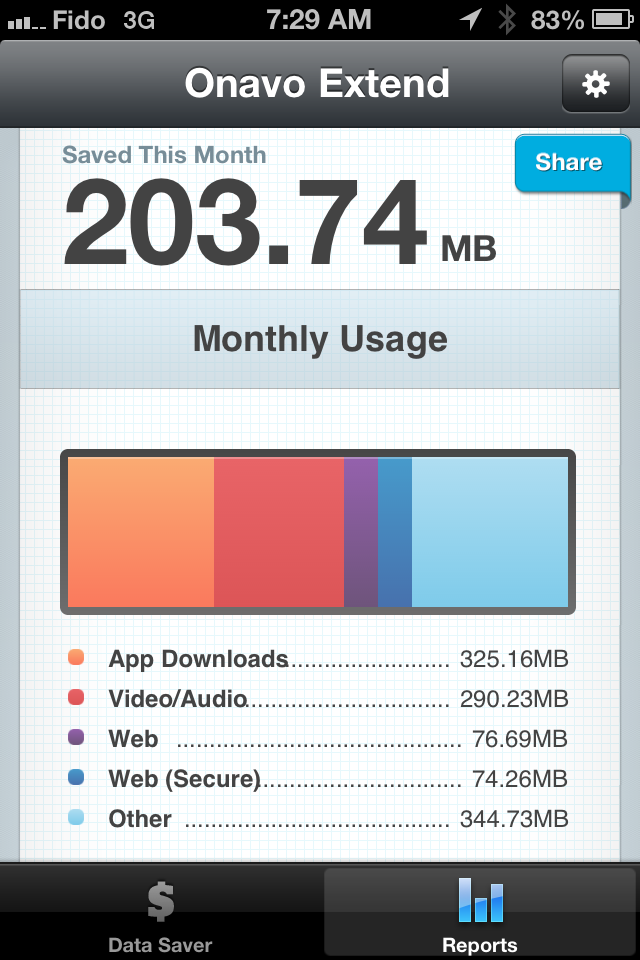
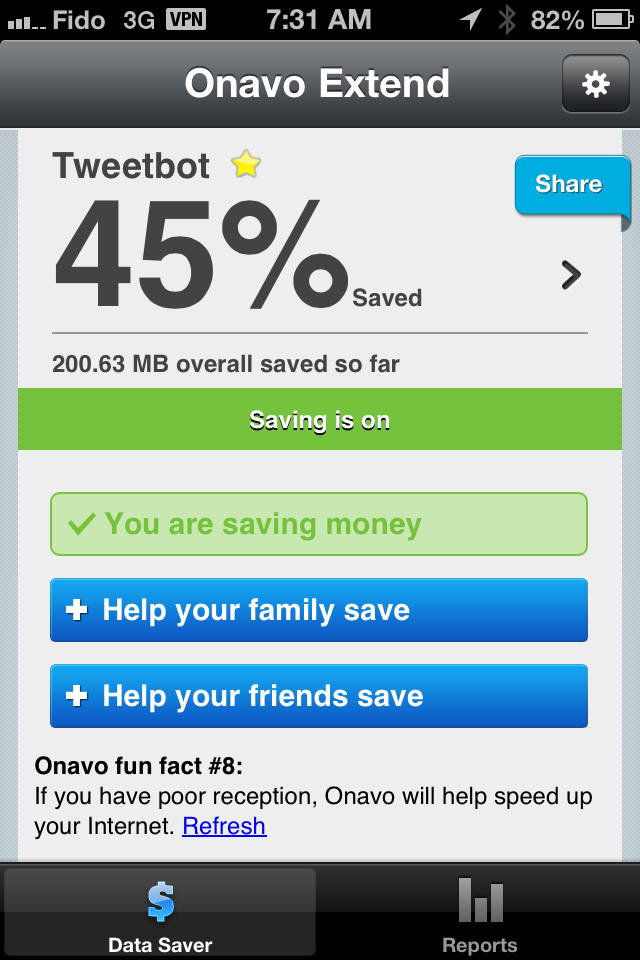
With 22 days of normal use, it managed to save me over 200MB of data.
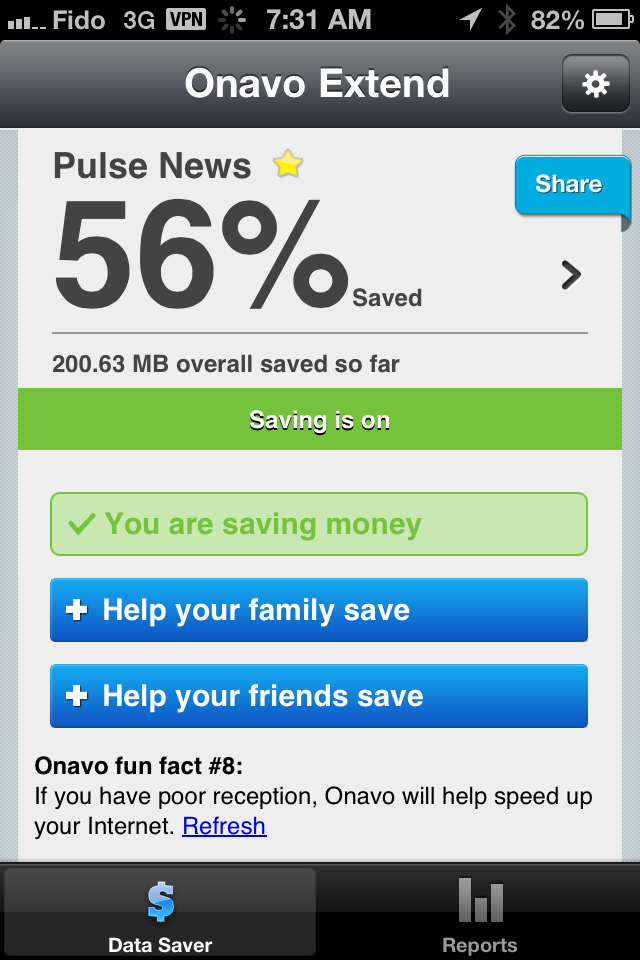
The main screen is super simple and it scrolls the savings for each of the apps you use for that month.
Video
ONAVO COUNT REVIEW
I also installed the other free Onavo app called Onavo Count. You can get it for iphone/iPad here and Android here.
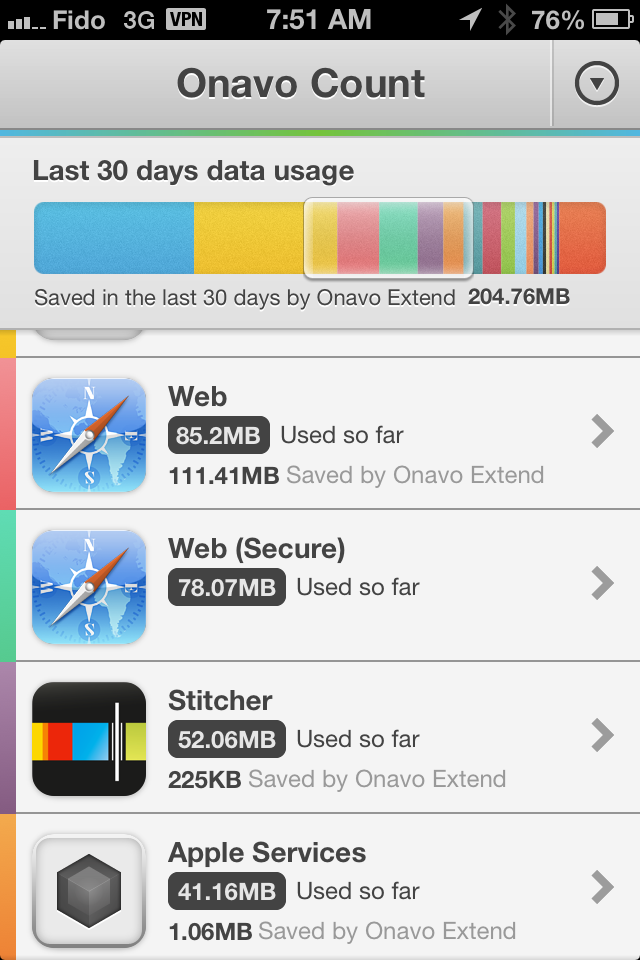
It is a free app that works with or without Onavo Extend and provides a view of how much data each of your apps and phone services are using in a given month. It’s a great way to understand which apps are “costing” you the most data per month.
When combined with Onavo Extend, Onavo Count also show you how much data you saved for each of the apps.
After playing with it, I like:
- It’s integrated with Onavo Count and shows me my usage and savings on one screen
- Ranks apps buy data usage
- app updates with weekly usage data
Get Crashplan unlimited online backup for $12 for 1 year (PROMO)

BLACK FRIDAY SPECIAL
If you need an online backup service for your computer files, Crashplan is running a crazy sale. (Price increases every 2 hours until the end of the promo). Right now you can buy the family unlimited plan (you can backup up to 10 computers online - unlimited storage) for $12US.
https://www.crashplan.com/bigsale/
Its cheaper and better than Carbonite, Mozy or Backblaze
The story of how Windows 8 was designed
Jensen Harris was involved in the design features of Windows 8 and he recently presented the story at UX Week.
He highlights Microsoft's core belief that if you give people enough good reasons, they will accept change (regardless of how radical it is). Let us not forgot that Microsoft has lead computing change over the last 3 decades :
- moving from DOS to Windows 3.1
- moving from Windows 3.1 to windows 95
- Moving from Windows 95 to Windows 8
Sure there were evolutionary changes in between but these represent the really big paradigm shift points. During each of this changes, a faction of their users complained and another group embraced the change. Eventually everyone understood the benefits of the new model and it became the standard.
If you have any interest in Windows 8, this video is interesting to watch
Windows8 TIP - Get Windows Media Center upgrade for Free
AppRemover uninstalls security & filesharing applications
I previously wrote about my favorite app uninstaller called Revo, it is worth the 5 minutes to read that article.
As mentioned in the above linked article about Revo, it will do a fantastic job for 99% of the applications on your windows 7/8/Vista/Server 2003 computer. Then we get to the 1% which is the wonderful world of security apps. These little gems are a must but need to deeply embed themselves into your operating system in order to perform their work. All of this is fine and dandy until you decide you want to uninstall the app.
Sure you can use the windows uninstaller but in most cases, it does work well enough so most vendors have created special uninstallation program for their security tools. Enter AppRemover. AppRemover is a specialized program that helps you completely remove the most popular security applications without having to find and download each developers custom uninstall program.
Like all uninstallation programs, once you download it, it performs a deep scan to identify what is actually installed on your PC. It then presents you with the list of apps it can uninstall. In my tests, it properly detected and cleaned the most common security programs (McAfeem Symantec, Microsoft, F-Secure and Sophos).
It also uninstalls the most common peer file downloading apps like utorrent, bitcomet, eMule, etc.
PRO
- Portable app - download and run
- Easy to use - even a newbie can use it
- Complete - In my tests it did an excellent job cleanup up during the uinstallation process
- Its free
Verdict
Obviously this isn't an app you will use very often but it is a nice addition to your toolkit. I still think you should install Microsoft's Security Essentials antivirus app and leave that one running.
For removal of peer to peer filesharing apps, I would still go to my Revo Uninstaller.
Windows8 TIP - Keyboard shortcuts
There are several dozen keybaord shortcuts but I just wanted to share the bare minimum you need to know to be efficient.
- Windows Key - brings up the new Start Menu interface
- Windows Key + C - Brings up the charms bar
- Windows Key + D - Hide or display the desktop
- Windows Key + E - Open "Windows Explorer"
- Windows Key + F - Open the Charms Search for Files tool
- Windows Key + Q - Open the Charms Search for Apps
- Windows Key + R - Open the run dialog box
- Windows Key + TAB - Cycle through the Metro apps.
- ALT + TAB - Cycle through desktop apps
- Windows Key + Print Screen - Capture a screenshot and save it to your Pictures folder
- ALT+F4 - Close current app
PicBackMan helps protect your pictures
Of everything I have on my home PC, nothing is more important than my pictures and I am sure many of you are in the same boat. In a previous article, I spoke about the 3-2-1 backup strategy to protect your irreplaceable files.
So how do you "easily backup your digital treasures" onto multiple online services? Enter PicBackMan. It is a simple program that can help backup your social network pictures (locally) and at the same time backup your local pictures to one or more online services. You create a free account so the app can store your connection settings and then jump straight into the simple configuration.
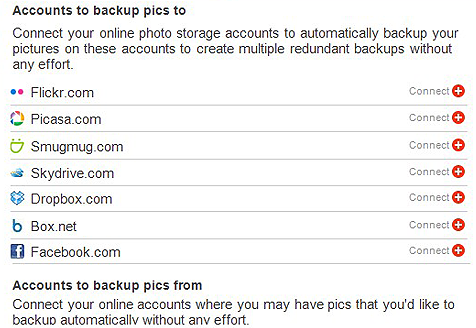
As mentioned, you can configure sources to backup from, think Instagram, Facebook, Foursquare, etc. Then you can choose the destinations to backup to, like Skydrive, Flickr, Picasa, SmugMug, Dropbox, etc.
Once you have configured once source and one destination, the program springs [automatically] into action and start backing up your pictures. Of course it monitors the dedicated source locations and automatically performs a backup when a new picture is found.
One interesting feature is how granular the configuration can be. You can setup different [local] folders for the different services and then configure the app to upload the content of those folders to specific online services. As an example, you can have a FACEBOOK directory locally and tell the app to automatically upload everything in that directory to Facebook.
They currently have a Windows version only and it works in Windows 7 and Windows 8. They will be releasing IOS, Android and MAC versions in the future.
With products like this, I alway wonder how it will be monetized. At least right now, the service is free but it seems the developers may add additional for-pay functions later (which is fine with me).
Tell the app where your pictures are, online and offline
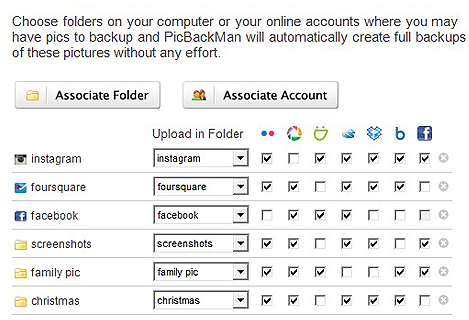
Tell the app where to backup your pictures
Verdict
I played with the app for a couple of weeks and tested various complex backup and save designs, the app worked flawlessly. I think this is one of those little gems that may become a must on all of your PCs and [soon] smartphones.
For me the winning combination was the power, simplicity and reliability. I give this app two thumbs up.
Windows 8 for IT Pros free eBook
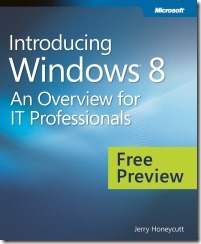
This is an interesting free eBook about Windows 8 aimed primarily at IT professionals working with Windows 8. The eBook has 147 pages in 11 chapters covering:
- Hardware Innovations - Touch; Long battery life; Thiner, lighter, faster; Sensors and security; New Form Factors
- Experiencing Windows 8 - Walk-through the new UI and key improvements to Task Manager and File Explorer.
- Customizing and Configuring Windows 8 - Profile customization, Tile configuration, PC Settings, Redesigned NTFS
- Networking Enhancements - BranchCache, DirectAccess, Mobile broadband, IPv6
- Deploying Windows 8 - Windows 8 SKUs, Application Compatibility, User State Migration, Deployment and Imaging, Windows PE, Volume Activation Management Tool, Windows-to-Go
- Delivering Windows Apps - Windows app lifecycle, Distributing via Windows Store, Distributing with an Enterprise
- Windows 8 Recovery - File History, Refresh and Reset, Windows Recovery Environment, DaRT, Advanced Options
- Windows 8 Management - PowerShell 3.0, Group Policy Improvements, System Center 2012 Configuration Manager, Windows Intune
- Windows 8 Security - Secure boot, SmartScreen, Vulnerability mitigation and sandboxing, BitLocker, Virtual smart cards, Dynamic Access Control
- Internet Explorer 10 - New features, Group Policies for IE 10
- Windows 8 Virtualization - Client Hyper-V, Virtual Desktop Infrastructure, Application virtualization, User state virtualization
Download the PDF version of the eBook here.
I posted a link for "FREE Window 8 For Dummies Pocket EBook" here. You may also find that interesting.
Google Maps coming back to IOS
We all know about the public backlash when Apple decided to remove Google Maps from its IOS 6 operating system. To be completely honest, the version of Google Maps bundled with previous versions of IOS felt old and unpolished. I know many are complaining that Apple's new IOS maps are bad but I don't agree. Apple Maps is graphically stunning and the app design is intuitive. Sure they have plenty of improvement opportunities, but I find it usable.
Google Maps coming back to IOS devices
If you miss Google Maps take heart, the Wall Street Journal (WSJ) is reporting that
"Google has distributed a test version of its new mapping app that will work on Apple's iPhones to some individuals outside the company"
If you believe the WSJ, and you probably should, public testing means the product is almost ready for submission to the Apple app store for approval in the next few weeks. WSJ believes the new version of Google Maps will bring back to IOS walking &transit directions, plus turn by turn navigation (similar to what is currently offered on Android devices).
Will Apple approve?
The interwebs seem to be in a heated discussion about Apple's approval process and the new Google Maps app. Will Apple approve it? Apple has approved other Google apps like YouTube, Google+, Search, Current, etc. I think Apple may delay the approval process but will eventually give it a go.
When will it be released?
We still don't know when Google will submit the app to Apple and how long Apple will take to approve it. With every passing day, it becomes less and less likely that we will see Google Maps back on IOS this year.
How to protect yourself on social networks
Social networks are interesting things, they allow people to connect and share data. Casinos spend billions of dollars to carefully design every aspect of their location, games and services to maximize your spend. Social networks spend a great deal of time figuring out how to "encourage" you to over-share.
The advantage social networks have is that they are impersonal and thus users seem to be willing to share far more information online than they would during a face to face encounter. This over-sharing of information is what allows the social networks to monetize you their product, to their customers (the advertisers).
But the reality is that it gets a little worse for users. This abundance of personal information also attracts nefarious people with questionable motives (spies, espionage agents, identity thieves, etc). Remember that the more information people can gather about you the easier it is for them to steal from you or put you in an uncomfortable position (think social engineering, phishing, etc). Using information this information, people can find your location, interests, places you like to visit, people you hang out with, when you typically leave the house, etc.
A good example of this is a software called Cree.py. The developer describes it as:
creepy is an application that allows you to gather geolocation related information about users from social networking platforms and image hosting services. The information is presented in a map inside the application where all the retrieved data is shown accompanied with relevant information (i.e. what was posted from that specific location) to provide context to the presentation.
Remember that your smartphone likely adds GPS data to every picture you snap and then share.
These sites are not only used to collect information but also to distribute malware, virus’ and Trojans to unsuspecting users. Attackers can easily create a professional looking social network connected app that does all kinds of “bad things” to your computer without you even knowing.
- Information you post – Review everything you are posting and try to understand the real impact of what a malicious person can do with it. Limit personal information as much as possible.
- Assume everything is public – Even with the best of controls, once you post something on a social network, it can be copied and re-distributed by your “friends”. Assume anything you post will be made public and that once it is posted it can never be erased from the internet.
- Make sure friends are friends – It is not uncommon for malicious users to create fake profiles that may look like it belongs to someone you know. Question everything and validate face to face to make sure the right people are connected to you. If you get requests to connect with strangers, refuse.
- Fake information – Most of us know how easily people can be manipulated to post “fake news” on their social network feeds as updates. This human weakness can be used to exploit one of your friends to pass a particular message to you. Assume anything can be faked online and double check.
- Check site settings – Most sites offer interesting privacy options but most users simply don’t take the time to review them. I recommend you take the time every month to check your site privacy settings and make sure they still meet your requirements. Also it is common for sites to periodically change their default settings or to add new settings (which may compromise your privacy unless you regularly go back to check)
- Dreaded 3rd party application - Remember that faking is easy online and think about all those apps you authorized to connect to your social network profile. Do you trust them? What is someone at that company went rogue and read your private messages, viewed your pictures or even posted things pretending to be you. It doesn’t happen often but it does happen.
- Keep your apps updated – read my article about updating your apps here.
- Install and update your antivirus
I’m not asking you to be paranoid but the world is a much more dangerous place than most people assume.
Related Articles
- You Are Facebook's Product, Not Its Customer
- Stop Hackers - Automatically Keeps Your PC Software Updated
- Is Your Account Hacked? Find Out Now Thanks To PwnedList
- Is Microsoft Going Through Your Cloud Stored Files?